EKS Cluster configuration for deploying Mach5 Search
This document contains the EKS cluster configuration requirements for deploying Mach5 Search.
Kubernetes Version
Verified Kubernetes version for the EKS cluster to deploy Mach5 Search:
- 1.32
- 1.31
- 1.29
- 1.28
Amazon EBS CSI driver
Mach5 Search needs the Amazon EBS CSI add-on added to your cluster. It manages the lifecycle of Amazon EBS volumes as storage for the Kubernetes Volumes that we create.
EKS Node Groups
Mach5 Search uses node-groups in EKS for scalability, efficient resource utilization and better performance of different parts of the system.
Managed node group configuration in Mach5:
| Node group name | Desired, Min Size | Max size | Instance Type | Labels | Pre bootstrap steps | Tags |
|---|---|---|---|---|---|---|
| mach5-nodes | 1,1 | 1 | m6a.2xlarge | mach5-main-role = “true” | pre_bootstrap_user_data = <<-EOT setup-local-disks raid0 EOT | “k8s.io/cluster-autoscaler/cluster-name” = “owned”, “k8s.io/cluster-autoscaler/enabled” = “true”, “k8s.io/cluster-autoscaler/node-template/label/group” = “mach5-nodes“, “k8s.io/cluster-autoscaler/node-template/label/mach5-main-role” = “true” |
| mach5-fdb-nodes | 1,1 | 5 | c5a.xlarge | mach5-fdb-role = “true” | NA | “k8s.io/cluster-autoscaler/cluster-name” = “owned”, “k8s.io/cluster-autoscaler/enabled” = “true”, “k8s.io/cluster-autoscaler/node-template/label/group” = “mach5-fdb-nodes“, “k8s.io/cluster-autoscaler/node-template/label/mach5-fdb-role” = “true” |
| mach5-ingestor-nodes | 0,0 | 10 | m6id.2xlarge | mach5-ingestor-role = “true” | pre_bootstrap_user_data = <<-EOT setup-local-disks raid0 EOT | “k8s.io/cluster-autoscaler/cluster-name” = “owned”, “k8s.io/cluster-autoscaler/enabled” = “true”, “k8s.io/cluster-autoscaler/node-template/label/group” = “mach5-ingestor-nodes“, “k8s.io/cluster-autoscaler/node-template/label/mach5-ingestor-role” = “true” |
| mach5-compactor-nodes | 0,0 | 10 | m6id.2xlarge | mach5-compactor-role = “true” | pre_bootstrap_user_data = <<-EOT setup-local-disks raid0 EOT | “k8s.io/cluster-autoscaler/cluster-name” = “owned”, “k8s.io/cluster-autoscaler/enabled” = “true”, “k8s.io/cluster-autoscaler/node-template/label/group” = “mach5-compactor-nodes“, “k8s.io/cluster-autoscaler/node-template/label/mach5-compactor-role” = “true” |
| mach5-warehouse-nodes | 0,0 | 10 | i4i.2xlarge | mach5-warehouse-worker-role = “true” | pre_bootstrap_user_data = <<-EOT setup-local-disks raid0 EOT | “k8s.io/cluster-autoscaler/cluster-name” = “owned”, “k8s.io/cluster-autoscaler/enabled” = “true”, “k8s.io/cluster-autoscaler/node-template/label/group” = “mach5-warehouse-nodes“, “k8s.io/cluster-autoscaler/node-template/label/mach5-warehouse-worker-role” = “true” |
| mach5-warehouse-head-nodes | 0,0 | 10 | m6id.2xlarge | mach5-warehouse-head-role = “true | pre_bootstrap_user_data = <<-EOT setup-local-disks raid0 EOT | “k8s.io/cluster-autoscaler/cluster-name” = “owned”, “k8s.io/cluster-autoscaler/enabled” = “true”, “k8s.io/cluster-autoscaler/node-template/label/group” = “mach5-warehouse-head-nodes“, “k8s.io/cluster-autoscaler/node-template/label/mach5-warehouse-head-role” = “true” |
Important notes:
- Pre-bootstrap command is needed in the above node group configurations to be able to configure local instance SSD as root volume.
- Make sure to propagate all the node group tags to the corresponding node group Auto scaling group too.
Where to specify node group labels and autoscaler tags for autoscaling
For an EKS Managed Node Group, users should not assume that setting tags in only one place is sufficient. In practice, there can be two launch templates involved:
- the launch template configured on the EKS node group
- the launch template referenced by the Auto Scaling Group (ASG) that EKS creates for that node group
These labels and tags are needed for Cluster Autoscaler to work correctly. If they are missing from one or more of the layers below, autoscaling can fail to discover the node group correctly or fail to match pending pods to the expected node-template labels.
To make Cluster Autoscaler behave correctly, users should verify that the required labels and tags are present at all of the following layers.
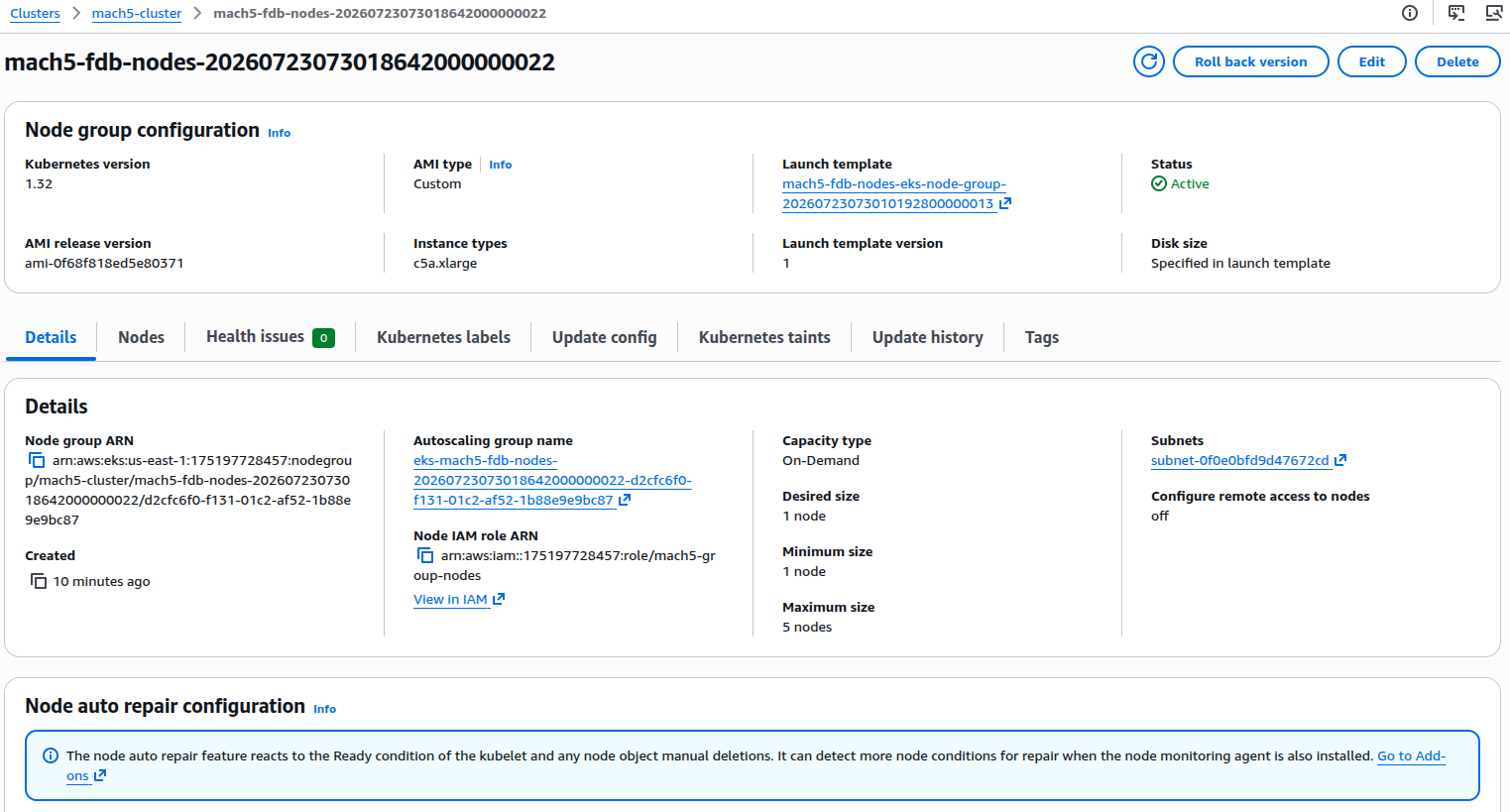
1. Node group details
Start from the EKS node group details page. This page tells you:
- the node group name
- the launch template attached to the node group
- the Auto Scaling Group created by EKS for that node group
2. Node group tags
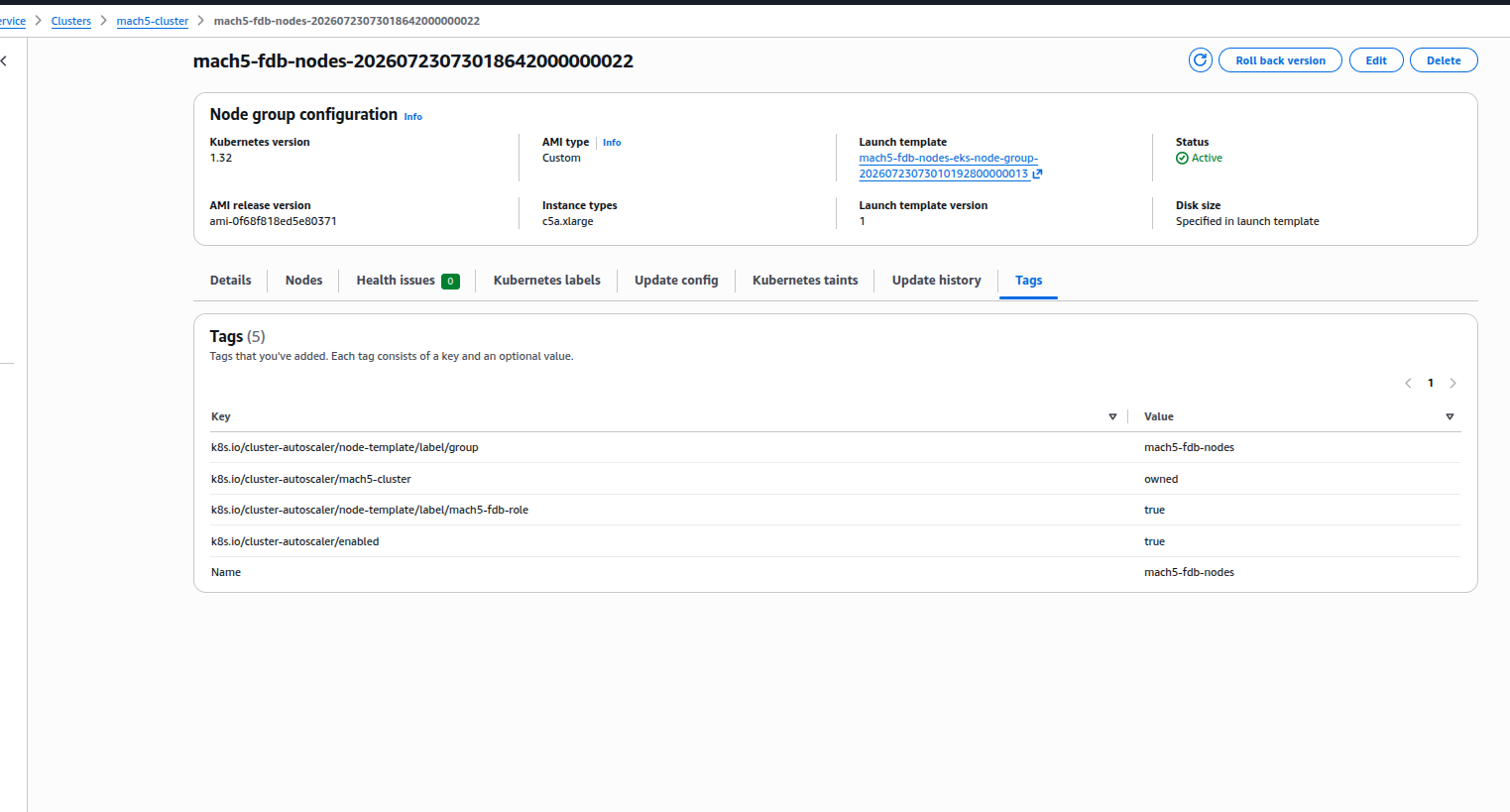
The node group itself should include the autoscaler discovery tags and any node-template label tags required for autoscaling and workload scheduling.
For Mach5 node groups, that typically means:
k8s.io/cluster-autoscaler/enabled = truek8s.io/cluster-autoscaler/<cluster-name> = ownedk8s.io/cluster-autoscaler/node-template/label/group = <node-group-name>k8s.io/cluster-autoscaler/node-template/label/<role-label> = true
Examples of role labels used in Mach5:
mach5-main-role = truemach5-fdb-role = truemach5-ingestor-role = truemach5-compactor-role = truemach5-warehouse-worker-role = truemach5-warehouse-head-role = true
If a node group is expected to scale for pods that select a given label, the corresponding k8s.io/cluster-autoscaler/node-template/label/... tag must also be present.
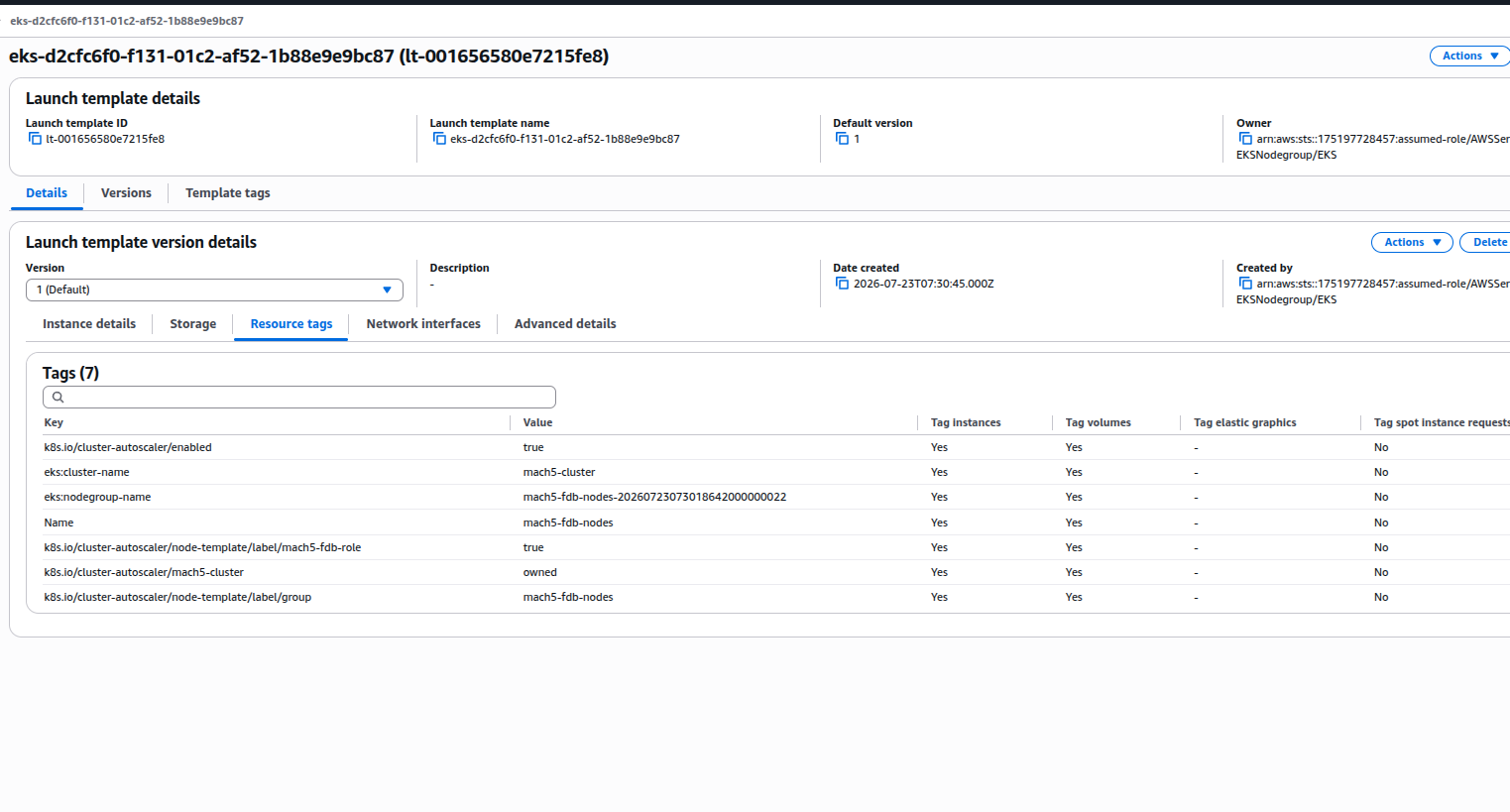
3. Node group launch template resource tags
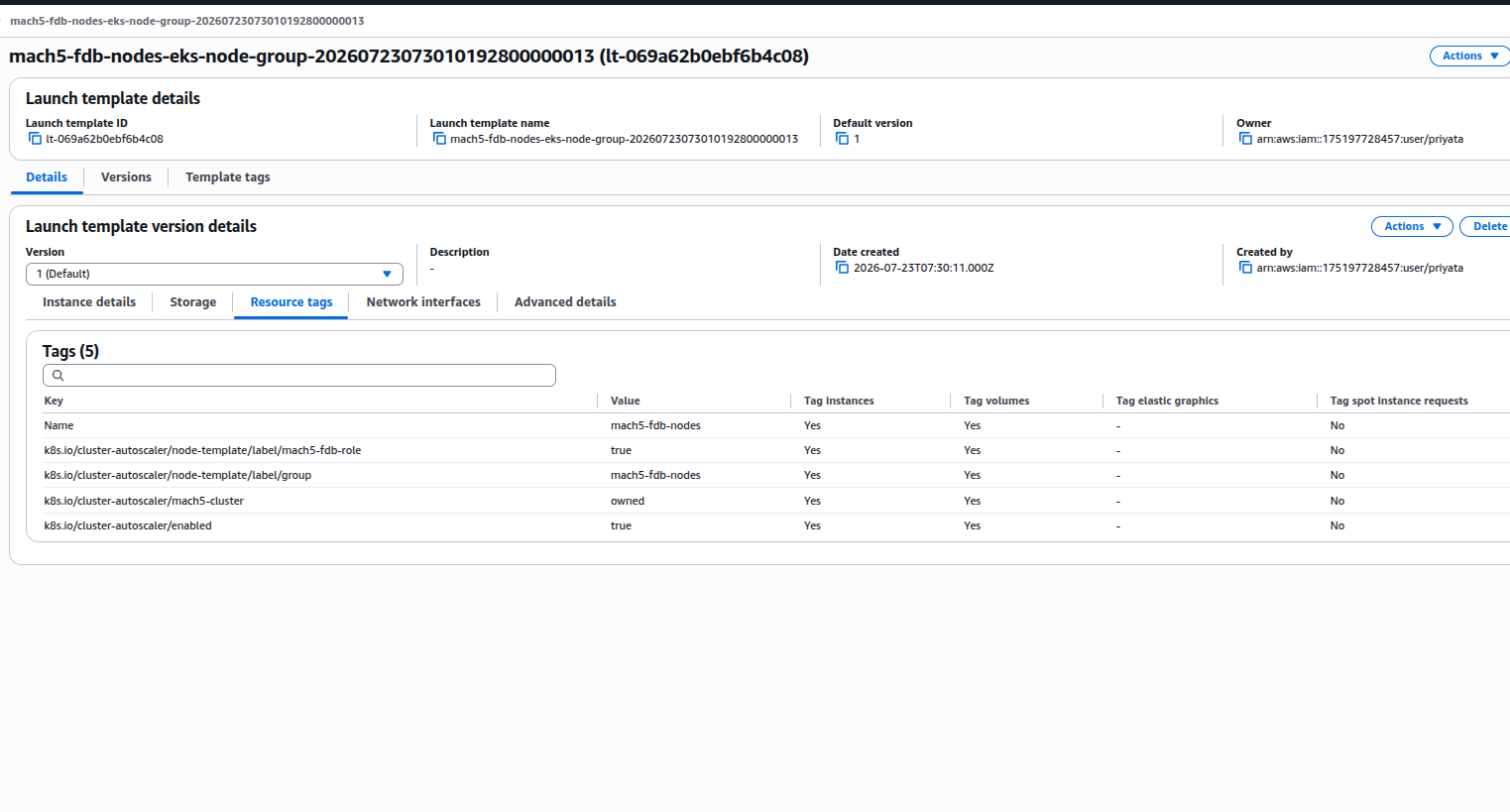
Open the launch template linked from the node group and verify the Resource tags tab. This is where tags are applied to instances and volumes launched from that template.
Users should make sure the same autoscaler-related tags are present here too, especially:
k8s.io/cluster-autoscaler/enabledk8s.io/cluster-autoscaler/<cluster-name>k8s.io/cluster-autoscaler/node-template/label/groupk8s.io/cluster-autoscaler/node-template/label/<role-label>
4. Auto Scaling Group tags
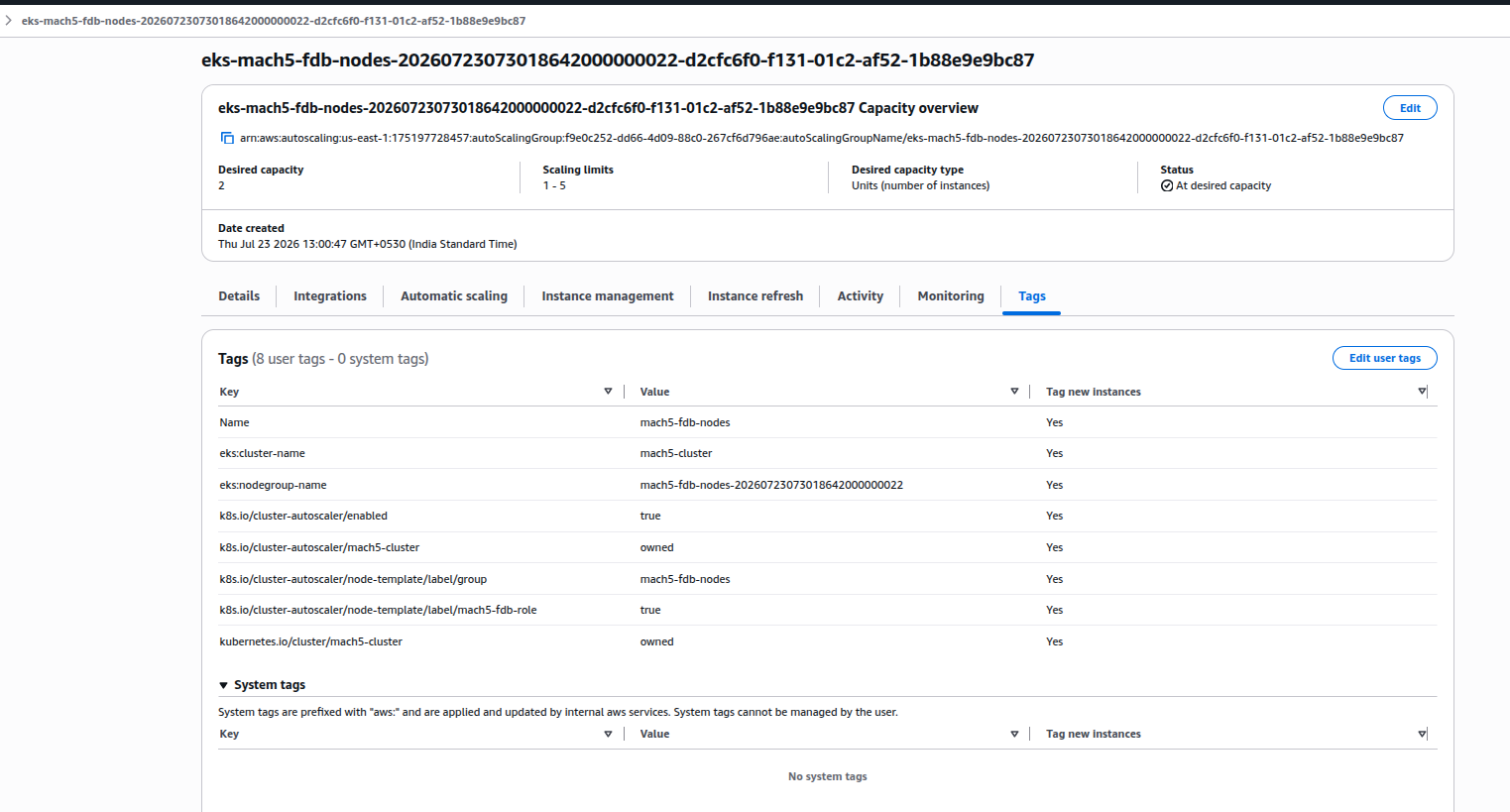
Open the Auto Scaling Group referenced by the node group and verify the ASG tags directly. This is an important check because EKS creates and manages this ASG behind the managed node group, and these tags are needed for autoscaling to work reliably during scale-out.
Users should confirm:
- the same autoscaler discovery tags are present on the ASG
- the same node-template label tags are present on the ASG
- Tag new instances is set to Yes
If the ASG does not propagate these tags to new instances, scale-out behavior can become inconsistent.
5. Auto Scaling Group launch template resource tags
Finally, open the launch template used by the Auto Scaling Group and verify its Resource tags tab as well.
This is the last layer in the launch path, and users should ensure the same autoscaler-related tags are visible here:
k8s.io/cluster-autoscaler/enabledk8s.io/cluster-autoscaler/<cluster-name>k8s.io/cluster-autoscaler/node-template/label/groupk8s.io/cluster-autoscaler/node-template/label/<role-label>
Summary
For each Mach5 EKS managed node group, users should configure and verify:
- Node group labels in the node group definition itself
- Autoscaler node-template label tags using
k8s.io/cluster-autoscaler/node-template/label/... - Autoscaler discovery tags on the node group
- the same tags on the node group launch template
- the same tags on the Auto Scaling Group
- the same tags on the Auto Scaling Group launch template
In short, labels used by Kubernetes scheduling must be represented as autoscaler node-template label tags, and those tags should be consistently present across the node group, ASG, and both launch-template tagging surfaces for autoscaling to work correctly.
Log rotation in the nodes
To enable log rotation for Kubernetes pods, you can configure the following post_bootstrap_user_data script for each of the node groups mentioned above:
#!/usr/bin/env bash
SRC_CONF="/etc/systemd/system/kubelet.service.d/30-kubelet-extra-args.conf"
DST_CONF="/etc/systemd/system/kubelet.service.d/40-kubelet-extra-args.conf"
if [ -f "$SRC_CONF" ]; then
  content=$(cat "$SRC_CONF")
  modified_content=$(echo "$content" | sed "s/'$/
--container-log-max-size=${var.log_max_size}
--container-log-max-files=${var.log_max_files}'/")
  echo "$modified_content" | tee "$DST_CONF"
else
  echo '[Service]
Environment="KUBELET_EXTRA_ARGS=--container-log-max-size=${var.log_max_size}
--container-log-max-files=${var.log_max_files}"
    ' | tee $DST_CONF
fi
systemctl daemon-reexec
systemctl daemon-reload
systemctl restart kubelet
Node group IAM role
Following policies must be attached to the IAM role to be attached to each node group:
- arn:aws:iam::aws:policy/AmazonEKSWorkerNodePolicy
- arn:aws:iam::aws:policy/AmazonEKS_CNI_Policy
- arn:aws:iam::aws:policy/AmazonEC2ContainerRegistryReadOnly
- arn:aws:iam::aws:policy/AmazonEC2FullAccess
- arn:aws:iam::aws:policy/AWSMarketplaceMeteringFullAccess
- arn:aws:iam::aws:policy/AWSMarketplaceMeteringRegisterUsage
- arn:aws:iam::aws:policy/AmazonS3FullAccess
- Alternatively, attach a custom policy for limited S3 permissions
- Terraform code snippet to create the custom policy:
data "aws_iam_policy_document" "mach5_vm_inline_policy_document" {
    statement {
        actions = [
        "s3:GetBucketAcl",
        "s3:GetBucketEncryption",
        "s3:GetBucketLocation",
        "s3:GetBucketPolicy",
        "s3:GetBucketPolicyStatus",
        "s3:GetBucketPublicAccessBlock",
        "s3:GetBucketVersioning",
        "s3:ListBucket"
]
effect = "Allow"
resources = [
    "arn:aws:s3:::${var.mach5_search_s3_bucket}"
]
}

    statement {
      actions = [
"s3:*"
]
    effect = "Allow"
      resources = [
      "arn:aws:s3:::${var.mach5_search_s3_bucket}/*"
    ]
}
}
S3 Bucket
Mach5 Search needs:
- An S3 bucket in the same AWS region as the EKS cluster
- This bucket would be used for data and OTLP logs storage by Mach5 Search
- Add a lifecycle rule to all the objects in the bucket to delete incomplete multipart uploads into the bucket Terraform snippet to add the lifecycle rule to the bucket:
resource "aws_s3_bucket_lifecycle_configuration" "abort_incomplete_multipart_upload" {
  bucket = aws_s3_bucket.mach5_s3_bucket.id
  rule {
    id     = "abort-incomplete-multipart-upload"
    status = "Enabled"
    abort_incomplete_multipart_upload {
      days_after_initiation = 1
    }
  }

depends_on = [ aws_s3_bucket.mach5_s3_bucket ]
}
- To reduce NAT gateway costs, make sure to have an S3 VPC endpoint configured
Mach5 Search Helm charts
Following helm charts need to be installed in the EKS cluster for deploying Mach5 Search:
| Name | Repository | Version |
|---|---|---|
| Mach5 Search | https://us-central1-docker.pkg.dev/mach5-dev/mach5-docker-registry/mach5-search | Chart version: $version Contact Mach5 Search administrator for the access key and for the version of Mach5 to be used |
| Mach5 Cache Proxy | https://us-central1-docker.pkg.dev/mach5-dev/mach5-docker-registry/mach5-cache-proxy | chart version: 1.13.3 |
Helm chart installation instructions can be found at: Mach5 Helm Charts